How to Participate, Physically or Virtually
No matter whether you registered as a physical or a virtual participant, this guide is for you!
ICER is a hybrid conference. This means all participants, no matter whether they participate physically in Uppsala or virtually online, should be able to get the ICER community experience. Similar to previous years, we chose Discord as our communication platform for all participants to use before and during ICER.
In Discord, you have the ability to communicate with voice calls, video calls, text messaging, media, and files in private chats or as part of communities called “servers.” This ICER 2026 Discord server is accessible only to registered participants of ICER 2026. It is not the same server as previous ICER discord servers.
We will use Discord to enable roundtable discussions, Q&A, hybrid participation in poster presentations, and to communicate with everyone. There’s even a Discord channel where you can coordinate to go on a hike, for a stroll through the city, or just hang out after the conference!
Please follow this guide to join and set up your profile, so other ICER participants can see and contact you! Register right now, before the conference, so you don’t miss any networking opportunities!
You need a Discord account
If you do not have a Discord account, please create one here: https://discord.com/register
Follow the Invitation Link
As a registrant for ICER you should have received (or will soon receive) an invite via email. A Discord invite looks like this: https://discord.gg/…
Note: This ICER 2026 Discord server is different from the old ICER 202X Discord servers. Even if you had joined servers for ICER in previous years, you still have to follow our new ICER 2026 invite to join the ICER 2026 Discord server and thus get access to ICER 2026!
To join the server, please click on the link and login with your Discord account (when prompted). Please note that the invite link is unique and it is only valid for one use. Each participant will receive their own private link.
Upon entering, it should look something like this:

Before you can participate fully, you will need to complete some quick steps by clicking either of the “Complete” buttons.
Verify your email (if your Discord profile is new).
If you haven’t already done so, you will be prompted to verify your email:

Click the “Verify” button, check your inbox and follow the instructions in the verification email sent to you.
Accept the Code of Conduct
Afterwards (or if your email was already verified), read the Code of Conduct and accept it by checking the box at the bottom.
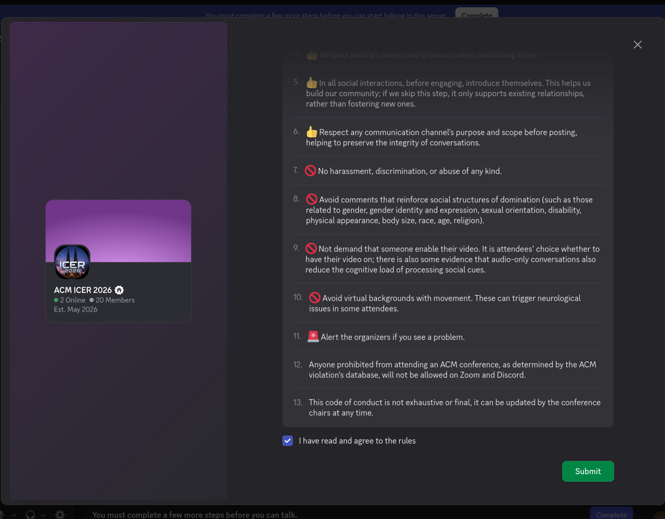
Update your display name
The last step is to update your nickname with your real name. To do so, click on your user in the right column, then click “Edit Server Profile.”

Write your full name in the nickname field and don’t forget to hit “Save” after. You may also add your preferred pronouns underneath the name. In case you are using your Discord account for multiple servers (e.g., for gaming) do not worry - this information is server-specific, so it won’t affect other servers.

At this point, we kindly ask you to be patient: One of the Discord Moderators will assign you a role as soon as possible and enable you to see all the channels!
In the meantime, configure your personal profile (beyond just your name). You may want to:
-
Introduce yourself in the #introductions channel!
-
Add a picture of yourself so other participants can recognize your face.
-
If you are participating virtually, add your timezone as your status
-
Under “About me”, include a link to your homepage.
(You may have to set those aspects of the profile in your “user profile”, which is visible on all Discord servers you joined, not just ICER 2026.)
Using the Discord
There are a number of different categories and channels, which we’ll briefly outline below:
-
General: Introduce yourself, discuss the schedule, receive announcements, plan dinner and other activities, and ask for help.
-
Roundtables: Voice channels representing virtual roundtables. We will use those roundtables to discuss the talks virtually during the ICER paper sessions.
-
Break rooms: Voice channels to be used for discussions in the breaks – feel free to use these for networking!
-
Research Papers: One text channel per research paper, the channel titles consist of the day, session, and number of the talk, in addition to the beginning of the title. Inside each channel you can find more information about the paper (e.g., authors, schedule, DOI) and discuss the paper. Note for Authors: We kindly ask you to provide your slides here, as well as answer questions posted in your paper channel. See the image below for an example.
-
Posters: Text channels for in-person posters, voice channels for virtual posters. Note for Authors: We kindly ask you to provide a digital version of your poster here, as well as answer questions posted in this channel.
-
Lightning Talks: One text channel for each lightning talk. Use this to leave comments for authors to respond to. Note for Authors: We kindly ask you to provide your slides here, as well as answer questions posted in this channel.
-
DC Track: One text channel per DC participant/poster. Note for DC participants: We kindly ask you to provide a digital version of your poster here, as well as answer questions posted in this channel.
Submission categories are mostly sorted by time of presentation. Below is an example of the channel of an ICER research paper. You can see the paper title, the authors, and two buttons: a link to the paper’s page in the schedule on this web site, and a link to the paper in the ACM DL (please note that the DOIs are not yet available).
If you are an author of that paper, please post a welcome message to participants right here. If you are a participant and are interested in this paper, or have specific feedback, do leave a comment right here as well. We recommend that authors check their paper’s channel from time to time throughout the conference, to be able to follow up on questions and hopefully walk away with new insights and ideas

Searching ICER: Find papers, posters, or chat messages
Did you know that you can search on Discord? And that searching will bring up papers, posters, lightning talks and their authors as well?
-
You may wonder whether a researcher you know is going to present something
-
You might want to see papers about a certain topic
Discord offers a powerful feature to search across the whole server (including inside channels!). By clicking on the Search text field (i.e., top right), Discord shows a number of search options. In our example, we searched for “Felienne” and obtained the two results: the voice channel for her poster and the text channel for her research paper.


Using Voice Channels
Voice channels include text chats, too – and you do not need to join the voice chat to view the text channel! To access it, hover on a voice channel from the list and click on the chat balloon, as depicted below.

